 WatchWalls AI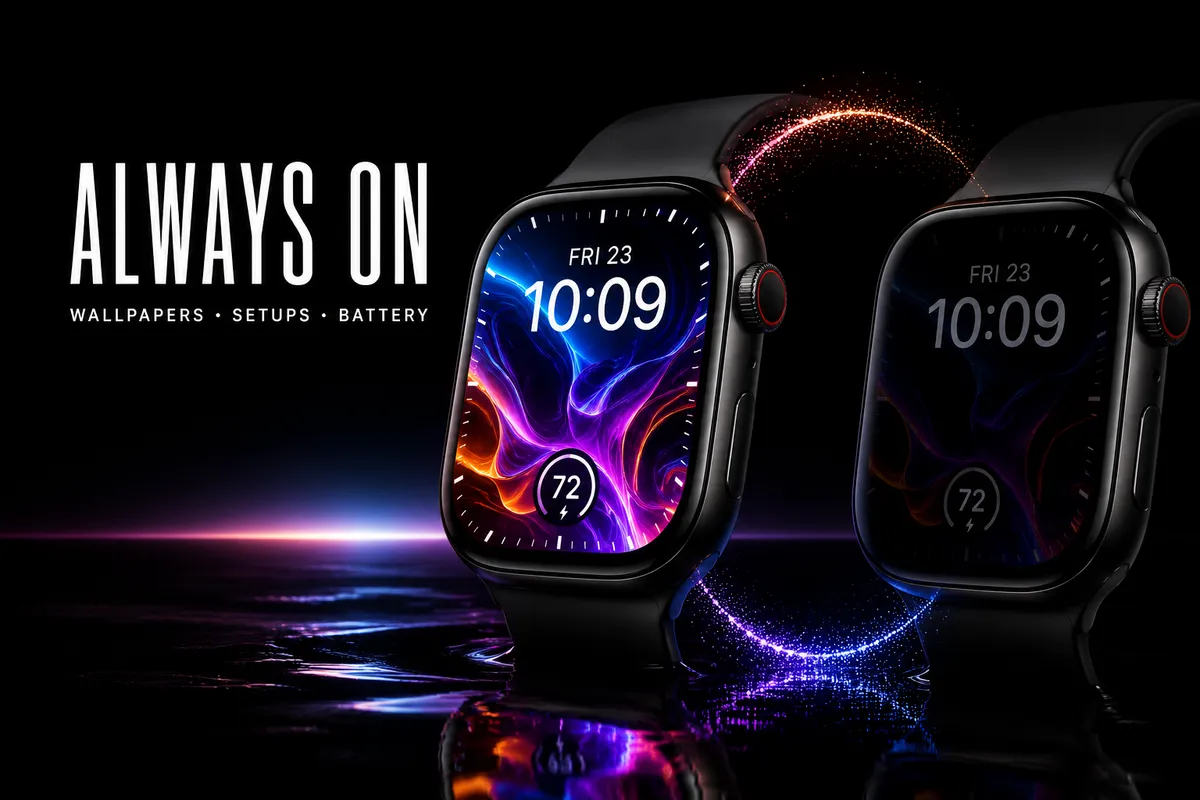
Apple Watch Always On Display Wallpaper: Best Setups & Battery Tips
Your Apple Watch screen goes dark the moment you drop your wrist — unless you have Always On Display turned on. AOD keeps a dimmed version of your current watch face visible at all times, which means your apple watch always on display wallpaper choice actually matters more than you might think. I spent about three weeks testing different wallpapers, watch faces, and AOD configurations on a Series 9 and an Ultra 2 to figure out what looks best and what kills your battery. Here’s everything I learned.
Which Apple Watch Models Support Always On Display
Before you start hunting for the perfect AOD wallpaper, make sure your watch actually has the feature. Apple introduced Always On Display with the Series 5 back in 2019, and every numbered series since then includes it:
- Apple Watch Series 5 — first AOD, LTPO OLED display
- Apple Watch Series 6 — brighter AOD thanks to a 2.5x brightness bump
- Apple Watch Series 7 — larger screen, AOD improved
- Apple Watch Series 8 — same AOD as Series 7
- Apple Watch Series 9 — brighter display overall (2000 nits peak)
- Apple Watch Series 10 — wide-angle OLED, best AOD visibility yet
- Apple Watch Ultra (1st gen & Ultra 2) — AOD supported, extra bright
Not supported: Apple Watch SE (any generation). The SE line skips AOD to keep the price down. If you own an SE, your screen will always go fully dark when you lower your wrist — there’s no setting to change that.
One thing I noticed during testing: the Series 5 AOD looks noticeably dimmer than newer models. If you’re on a Series 5 and your apple watch always on display wallpaper seems hard to read, it’s partly a hardware limitation. The Series 9 and Ultra 2 handle dimmed wallpapers much better because of their brighter panels.
How AOD Changes Your Apple Watch Always On Display Wallpaper
When your wrist drops and AOD kicks in, your watch does several things to the display simultaneously:
Brightness drops dramatically. The screen goes from full brightness (up to 2000 nits on newer models) down to around 1-2 nits. That’s roughly a 99% reduction. The LTPO display drops its refresh rate to 1Hz to save power, which means animations freeze entirely.
Colors shift and simplify. Bright whites become muted grays. Vibrant reds and blues lose some saturation. This is intentional — the watch is trying to save battery by driving fewer pixels at lower intensity. The result is that your wallpaper looks like a toned-down version of itself.
Some elements disappear. On certain watch faces, the second hand vanishes. Animated elements (like the jellyfish on the Motion face) freeze in place. Some minimalist watch faces actually look better in AOD because they’re already simple.
Complications stay visible. Your date, weather, activity rings — those remain on screen, though dimmed. That is the whole point of AOD: a quick glance gives you the time and basic info without raising your wrist.
The problem? Not every wallpaper translates well to this dimmed state. I set a light blue gradient as my wallpaper for a few days, and in AOD mode it looked like a washed-out gray rectangle with barely visible complications. Switching to a dark wallpaper with neon accent lines made everything pop, even at the lowest brightness.
Best Watch Faces for Always On Display
Not all always on display watch faces are created equal. Some look stunning when dimmed; others become useless. After testing every built-in face with AOD, here’s my breakdown:
Faces That Look Great Dimmed
- Infograph Modular — clean layout, complications stay readable, dark background by default
- Simple — the AOD version barely changes from the active version, clean and readable
- Meridian — the Roman numerals and circular design hold up well in low brightness
- Contour — numbers move to the edge and remain visible in AOD
- Modular Ultra (Ultra only) — the extra screen space means more room for dimmed complications
- California — mixed numeral style stays legible
Faces That Struggle in AOD
- Motion — the animation freezes, so you get a static jellyfish or flower that looks odd
- Portraits — photos get so dark you can barely see the person, and the depth effect disappears
- Photos — same issue, most photos become dark muddy blobs
- Kaleidoscope — the colors that make it interesting get stripped away
- Toy Story / Mickey — character animations freeze in awkward positions
The pattern is obvious: faces with solid structure and text hold up, while faces that rely on color, animation, or photography fall apart. If you’re using a black wallpaper setup, you’re already ahead — dark backgrounds give AOD the best canvas to work with.
Best Apple Watch AOD Wallpaper Colors & Styles
Picking the right apple watch aod wallpaper comes down to understanding how OLED screens work. On an OLED panel, black pixels are literally turned off — they use zero power and produce true black. This gives you two advantages for AOD:
- Black areas consume no battery, extending your wear time
- Any bright element next to a true black area has maximum contrast, staying readable even at very low brightness
Colors That Work
Dark backgrounds with bright accents are the sweet spot. Think black backgrounds with:
- Neon green, cyan, or orange lines or geometric shapes
- White text elements
- Bold single-color icons
- Red or amber highlights (these maintain visibility at low brightness)
Colors to Avoid
Light backgrounds are the worst choice for AOD. A white or cream wallpaper at full brightness looks fine, but when the display dims, it turns into a dull gray that eats battery (the pixels are still partially lit) and makes complications hard to distinguish.
I tested this directly: a white marble wallpaper drained roughly 4% more battery over 8 hours compared to a pure black wallpaper with the same complications. Not a massive difference on paper, but over a full day it adds up.
Pastels also struggle. Light pink, baby blue, mint green — they all lose their character when dimmed and end up looking like slightly different shades of gray.
Gradients that start light can be problematic. A gradient from black to dark blue works great. A gradient from white to sky blue turns into a muddy mess in AOD mode.
The best approach I found was using wallpapers designed around the OLED advantage: mostly black with strategic pops of color. Apple’s own support page on AOD mentions that the display adapts colors, but they don’t tell you just how much detail you lose with light wallpapers.
How to Customize Apple Watch AOD Settings
Getting your apple watch aod settings right takes about two minutes. Here’s the full setup:
Turn AOD On or Off
On your Apple Watch:
- Open Settings
- Tap Display & Brightness
- Tap Always On
- Toggle it on or off
From your iPhone:
- Open the Watch app
- Go to Display & Brightness
- Toggle Always On
Hide Sensitive Complications
Starting with watchOS 9, you can hide certain complications when AOD is active. This is useful if you don’t want strangers reading your calendar events or messages when your watch is in dimmed mode.
- Open the Watch app on your iPhone
- Tap Display & Brightness → Always On
- Under “Hide Sensitive Complications,” toggle individual apps
I keep my Calendar and Messages complications hidden in AOD. The complication spot shows a generic icon instead of actual content when the screen is dimmed. Raise your wrist, and the full info appears.
Using Focus Modes with AOD
You can pair Focus modes with specific watch faces. Set up a Sleep focus that switches to a sleep-optimized watch face with AOD turned off — your screen goes completely dark at night, saving battery while you sleep. During the day, your regular face with AOD kicks back in automatically.
This combo made a noticeable difference in my overnight battery drain. With AOD on during sleep, I lost about 8-10% overnight. With it off via Sleep Focus, that dropped to 3-5%.
Apple Watch Screen Always On: Battery Impact With Real Numbers
This is what everyone wants to know: how much battery does keeping the apple watch screen always on actually cost you? I ran a series of tests over two weeks on a Series 9 (41mm) to get real numbers.
Test Setup
- Same watch face (Infograph Modular) for all tests
- Same complications (weather, date, activity, battery)
- No workout tracking during test periods
- Wi-Fi on, Bluetooth connected to iPhone
- Moderate notification volume (~40-60 per day)
Results
| Scenario | 18-Hour Drain | Estimated Full-Day |
|---|---|---|
| AOD On + Dark Wallpaper | 52-58% | ~30 hours total |
| AOD On + Light Wallpaper | 58-65% | ~26 hours total |
| AOD Off | 40-48% | ~36 hours total |
The difference between AOD on and off was consistently 10-18% over an 18-hour day. That’s real, but for most people it doesn’t matter — even with AOD on and a dark wallpaper, the Series 9 easily lasted a full day with 40%+ remaining at bedtime.
The more interesting finding was the wallpaper impact. A dark wallpaper with AOD on saved about 5-7% compared to a light wallpaper with AOD on. Over a day, that can mean the difference between making it to bedtime comfortably or hitting Low Power Mode in the evening.
9to5Mac’s battery guide reports similar numbers. The takeaway: AOD has a real cost, but a smart wallpaper choice can offset part of it.
On the Ultra 2, the impact was smaller in percentage terms because the battery is so much larger (564 mAh vs 282 mAh on Series 9). AOD on the Ultra 2 cost about 8-12% over 18 hours — and with a 36-hour rated battery, that’s trivial.
Best Practices: Designing Wallpapers for AOD
If you’re creating or choosing wallpapers with AOD in mind, these guidelines will save you from trial and error:
Contrast Ratio Matters Most
In AOD mode, subtle differences between colors disappear. A wallpaper that has a dark gray pattern on a black background might look great at full brightness, but in AOD those two shades merge into indistinguishable black. Aim for at least a 5:1 contrast ratio between your background and any visible elements.
Keep the Center Clear
The time display sits in the center of most watch faces. If your wallpaper has busy detail in the center, the time becomes hard to read in AOD mode where everything is already dim. Use wallpapers that push visual interest to the edges or corners.
Test Before You Commit
After setting a new wallpaper, wait 15-20 seconds with the watch on your wrist until AOD activates. Look at it from different angles and in different lighting. I’ve set wallpapers that looked perfect indoors but were completely invisible outdoors in daylight because the AOD brightness couldn’t compete with ambient light.
Avoid Fine Detail
Thin lines, small text, and intricate patterns get lost at 1Hz refresh and minimal brightness. Bold shapes, thick lines, and large color blocks translate much better. A wallpaper with a large geometric shape in cyan on black looks striking in AOD. A wallpaper with a detailed cityscape becomes an unrecognizable dark smudge.
Think About the Full Cycle
Your wallpaper needs to work in three states: full brightness (active), dimmed (AOD), and the transition between them. Some wallpapers create a jarring flash when you raise your wrist because the AOD version looks so different from the active version. The smoothest transitions happen with wallpapers where the dimmed version is clearly a darker take on the same image.
If you want to skip the guesswork, How-To Geek has a solid overview of AOD behavior, and you can also try wallpapers in particular built for OLED screens.
Try WatchWalls AI →
Troubleshooting AOD Issues
AOD usually just works, but here are common problems and fixes:
AOD Not Dimming (Screen Stays Fully Bright)
If your watch stays at full brightness when you lower your wrist, the wrist detection sensor might be blocked. Check that your watch sits snugly on your wrist — too loose and the sensor can’t tell if your wrist is up or down. Also check Settings → Passcode and make sure Wrist Detection is on.
AOD Not Showing At All
If the screen goes completely black instead of showing a dimmed face:
- Confirm AOD is toggled on in Settings → Display & Brightness
- Check if you’re in a Focus mode that has AOD disabled
- Make sure you’re not in Theater Mode (the mask icon in Control Center), which disables AOD
- Restart your watch — hold the side button, slide to power off, then power back on
AOD Draining Battery Too Fast
If AOD seems to drain more than the 10-18% range described above:
- Switch to a darker wallpaper — light backgrounds use measurably more power
- Reduce the number of complications, especially ones that update frequently (weather, stocks)
- Turn off AOD during sleep using a Focus mode
- Check for a watchOS update — battery bugs have been fixed in point releases before
- If drain is extreme (30%+ in a few hours), unpair and re-pair your watch
Wallpaper Looks Different in AOD Than Expected
This is normal behavior, not a bug. AOD intentionally reduces color saturation and brightness. If your wallpaper looks “wrong” in AOD, it’s probably a wallpaper that wasn’t designed with low-brightness viewing in mind. Switch to a wallpaper with higher contrast and darker base colors — check our guide on how to change your Apple Watch wallpaper if you need a refresher on the process.
Frequently Asked Questions
Does Always On Display work with custom photo wallpapers?
Yes, AOD works with photo wallpapers set through the Photos watch face, but the results are often disappointing. Photos get extremely dim and lose most of their detail. If you want to use a photo, choose one with a dark background and a bright subject in the center. Portraits against dark backgrounds work better than scene shots or group photos. For the best AOD experience, purpose-designed wallpapers with dark backgrounds outperform photos almost every time.
Can I have different AOD settings for different watch faces?
AOD is a system-wide setting — it’s either on or off for all watch faces. You can’t enable AOD for one face and disable it for another directly. However, you can use Focus modes to switch watch faces automatically, and pair that with a shortcut or schedule. For example, set a “Work” focus that uses an AOD-friendly face and a “Sleep” focus that uses a simple face with AOD behavior minimized by enabling Theater Mode automatically at bedtime.
Will Always On Display cause screen burn-in on my Apple Watch?
Burn-in is theoretically possible on OLED screens, but Apple has built in protections to prevent it. The AOD mode shifts pixels slightly over time, varies brightness, and uses extremely low power states that minimize the risk. After using AOD continuously for over a year on a Series 8 and then a Series 9, I haven’t seen any signs of burn-in or image retention. Apple clearly engineered AOD with long-term OLED health in mind.
Why does my Apple Watch AOD look different from my friend’s?
Several factors affect how AOD looks: the watch model (newer models have brighter displays), the watch face you’re using (each face has its own dimmed design), your wallpaper choice, and ambient light conditions. A Series 5 AOD will look noticeably dimmer than a Series 10 or Ultra 2 AOD showing the same face. The wallpaper color also plays a big role — dark wallpapers let accent colors stand out more in the dimmed state.
Does AOD work in water or during workouts?
During workouts, AOD stays active and shows your workout metrics in a dimmed state when you lower your wrist — this is actually one of AOD’s most useful features. You can glance at your pace or heart rate without the full wrist-raise gesture. In water, if Water Lock is enabled, AOD is disabled to prevent accidental touches and save battery. Once you turn the Digital Crown to expel water and disable Water Lock, AOD resumes normal behavior.
