 WatchWalls AI
How to Make Apple Watch Wallpaper: DIY Design Guide
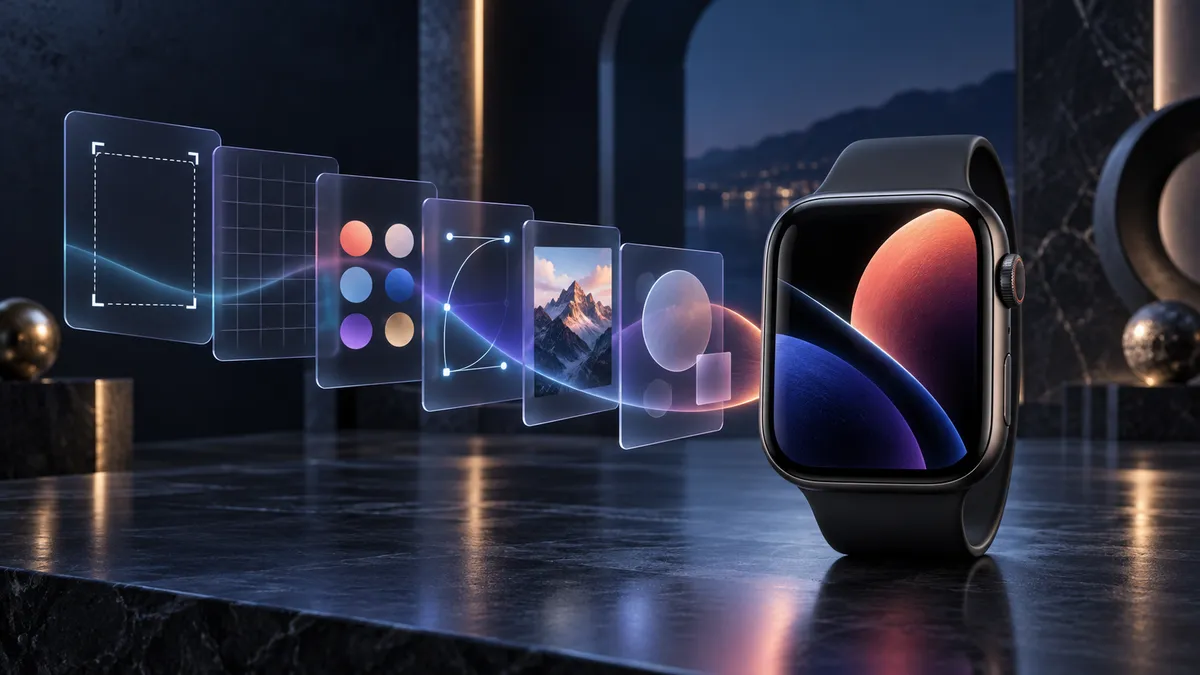
If you want to make Apple Watch wallpaper from scratch — a personal photo, a minimal pattern, your own artwork — you don’t need an AI generator to do it. The manual route gives you complete control: exact colors, exact composition, exact dimensions. This guide walks through five free tools and two detailed tutorials so you can go from idea to wrist in under 20 minutes.
Already tried AI-generated options? Check out the Apple Watch AI Wallpaper guide for that workflow. This article focuses entirely on the DIY path.
5 Free Tools to Make Apple Watch Wallpapers
Each tool below has a different strength. Pick the one that matches how you work.
1. Canva
Canva is the fastest starting point for most people. You can create a custom canvas at the exact watch dimensions, drag in photos or text, apply color palettes, and export a PNG in under five minutes. The free tier covers everything you need — no Pro subscription required for basic wallpaper work.
Canva’s biggest advantage is its template library. Search “Apple Watch face” or “square minimal” and you’ll find starting points you can rework rather than designing from a blank slate. It also runs entirely in the browser, so there’s nothing to install.
2. Figma
Figma is free for personal projects and gives you pixel-perfect precision that Canva can’t match. If you’re designing something geometric — a grid, a monogram, a custom watch-face-style layout — Figma’s vector tools and constraint system make it far easier to keep elements aligned as you resize.
The free plan allows unlimited personal drafts. Create a new frame at 396×484 px, design your image, and export it as PNG at 1x. Figma also makes it trivial to maintain a library of wallpaper variants since each one lives on its own frame inside a single file.
3. iPhone Photos App
The quickest method when you already have the photo you want. The built-in Photos app on iPhone includes a crop tool that lets you set a custom aspect ratio. Apple Watch screens are roughly 9:11 in portrait — you can crop to that ratio directly, then transfer the image via the Watch app.
No design skills required. This method works best for portrait shots, macro photography, or any image where the subject is already centered.
4. Shortcuts App
Apple’s Shortcuts app lets you build a repeatable cropping workflow. You can create a shortcut that takes any image from your photo library, crops it to the correct watch dimensions, and saves it back to a designated album — one tap, done. This is the right tool if you swap wallpapers frequently and want to maintain a consistent process without repeating manual steps each time.
A basic “Crop to Watch Size” shortcut takes about three minutes to build: get photo from input → crop image to 396×484 → save to album.
5. Preview on Mac
If you’re already on a Mac and just need a quick resize, Preview handles it without opening any external app. Open your image, go to Tools → Adjust Size, uncheck “Scale proportionally,” and type in the exact pixel dimensions. Export as PNG. It’s not a design tool, but for resizing an already-composed image it’s the fastest path from file to correct dimensions.
Step-by-Step: Creating a Wallpaper in Canva
This walkthrough targets the most common current watch size (396×484 px). If you have an older model, swap in the dimensions from the resolution table below.
- Create a custom design. On the Canva homepage, click “Create a design” → “Custom size.” Enter 396 px wide and 484 px tall. Click “Create new design.”
- Set your background. Click the background area and choose a color. For OLED displays (Series 4 and later), pure black (#000000) saves battery and makes other elements pop. Dark navy, forest green, and charcoal are also strong choices.
- Add your focal element. Upload a photo, drag in a shape, or type a single word or monogram. Keep it one thing — the screen is 40–45 mm tall. Multiple competing elements become unreadable noise.
- Position and scale. Center your focal element, or place it in the lower third if you want watch complication text to sit above it cleanly. Leave at least 15–20 px of breathing room on all edges.
- Check contrast. Zoom out to thumbnail size in your browser to simulate the watch screen. If your element disappears or blurs, increase contrast or simplify the design.
- Export. Click Share → Download → PNG. Make sure “Transparent background” is off unless you want transparency. Download to your camera roll or Files app.
- Transfer to watch. Open the Watch app on your iPhone → My Watch → Photos → Synced Album. Add your exported image to that album. Then on your Apple Watch, go to Photos watch face and select the image as the source. Full details in the how to change Apple Watch wallpaper guide.
The whole process takes five to eight minutes once you’ve done it once. The export step is the only moment where people commonly make mistakes — always export as PNG, never JPEG, to avoid compression artifacts on the fine details of a small screen.
Step-by-Step: Cropping a Photo for Apple Watch on iPhone
This method requires no external app. It works on any iPhone running iOS 16 or later.
- Pick your photo. Open Photos and select the image you want to use. Portrait shots work best — a face, a flower, a horizontal cropped tight. Wide horizontal scenes lose too much detail when forced into a tall rectangle.
- Open the editor. Tap “Edit” in the top right corner.
- Go to the crop tool. Tap the crop/rotate icon at the bottom of the editor. It looks like overlapping rectangles.
- Set a custom ratio. Tap the aspect ratio icon (stacked rectangles, top right of the crop panel) → Custom. Enter 9 for width and 11 for height. This gives you the approximate portrait ratio of the Apple Watch screen.
- Position the crop. Drag the photo inside the crop frame until your main subject is centered and cleanly framed. Pinch to zoom if needed.
- Save. Tap “Done.” The cropped version saves as an edit — the original is preserved. If you want a separate file, tap the share icon → Save Image.
- Sync to watch. Add the image to your synced watch album following the steps in the Apple Watch face from photo guide.
One note: the Photos app crops to a ratio, not to exact pixels. The resulting file will be larger than 396×484 px because it’s cropped from a full-resolution photo. That’s fine — Apple Watch downscales it automatically. What matters is the aspect ratio, not the absolute pixel count.
Design Rules for Tiny Screens
A wallpaper that looks great on a 15-inch monitor can be completely unreadable on a 45 mm watch face. These four principles make the difference.
Use a dark base
Apple Watch uses OLED on Series 4 and all later models. OLED turns off individual pixels to display black, which means a dark background costs almost no battery. A bright white or light background keeps pixels fully lit at all times and noticeably drains the battery over a day. Beyond battery, dark backgrounds make interface elements like time digits and complications far more readable at a glance.
One focal point only
The usable display area on a 45 mm watch is roughly 1.8 cm × 2.2 cm in real life. That’s smaller than a postage stamp. A wallpaper with a busy cityscape, multiple text elements, or a collage of photos becomes an unrecognizable blur. Pick one thing — a portrait close-up, a bold geometric shape, a single word — and remove everything else.
Portrait orientation, always
Apple Watch displays are taller than they are wide. Never use a horizontal or square image as your starting canvas. Start at the correct portrait dimensions from the beginning rather than rotating or squishing a horizontal image later.
Simple compositions transfer better
High contrast between foreground and background. Bold lines rather than fine detail. Solid color regions rather than gradients with many steps. The more you simplify, the better the result looks at small size. This is where a minimal monogram or a single macro photo beats an intricate illustration every time.
For more starting-point concepts, the Apple Watch wallpaper ideas article has a breakdown of styles that actually work at watch scale.
Resolution Quick Reference by Model
| Model | Case Size | Screen Resolution (px) | Canvas Size for Canva / Figma |
|---|---|---|---|
| Apple Watch Ultra 2 | 49 mm | 410 × 502 | 410 × 502 px |
| Series 10 (46 mm) | 46 mm | 396 × 484 | 396 × 484 px |
| Series 10 (42 mm) | 42 mm | 374 × 446 | 374 × 446 px |
| Series 9 / SE (2nd gen) — 45 mm | 45 mm | 396 × 484 | 396 × 484 px |
| Series 9 / SE (2nd gen) — 41 mm | 41 mm | 352 × 430 | 352 × 430 px |
| Series 7 / 8 — 45 mm | 45 mm | 396 × 484 | 396 × 484 px |
| Series 7 / 8 — 41 mm | 41 mm | 352 × 430 | 352 × 430 px |
| Series 4 / 5 / 6 — 44 mm | 44 mm | 368 × 448 | 368 × 448 px |
| Series 4 / 5 / 6 — 40 mm | 40 mm | 324 × 394 | 324 × 394 px |
| Series 3 — 42 mm | 42 mm | 312 × 390 | 312 × 390 px |
| Series 3 — 38 mm | 38 mm | 272 × 340 | 272 × 340 px |
If you’re not sure which model you have, go to the Watch app on iPhone → General → About → Model Number. The full size chart with additional notes is at Apple Watch wallpaper size chart.
Common Mistakes to Avoid
Wrong aspect ratio
Using a square or horizontal canvas and then squishing it into the watch’s portrait proportions distorts the image. Always start at the correct dimensions. A 1:1 square will be stretched vertically; a 16:9 horizontal image will be crushed and barely recognizable. Get the canvas right before you design anything.
Too much detail
Fine textures, small text, intricate patterns — none of these survive the trip to a 45 mm screen. What looks like a beautifully detailed illustration on your monitor becomes a muddy smear on the wrist. Test every design by viewing it at actual physical size. Shrink the browser window until the canvas is roughly 4 cm tall and evaluate it there.
Light or white backgrounds
Beyond the battery concern mentioned earlier, light backgrounds create a harsh glare in outdoor light. The watch glass reflects the sky; a bright white image underneath becomes nearly invisible. Stick with backgrounds that are middle-dark to near-black.
Ignoring the complication zone
On most watch faces, complications — date, weather, activity rings — sit in predictable positions (usually the top and bottom edges). If your wallpaper has a critical design element in those zones, it will be covered. Design with a “safe zone” in the center third of the image for your main subject, leaving the edges relatively neutral.
Exporting as JPEG
JPEG compression introduces blocky artifacts, especially around high-contrast edges and text. Always export as PNG for watch wallpapers. The file size difference is negligible at 396×484 px, and the quality difference is visible.
FAQ
What size should I make an Apple Watch wallpaper?
For most current models, use 396×484 px (Series 7–10 at 44–46 mm, Series 9 at 45 mm). Apple Watch Ultra 2 uses 410×502 px. Older Series 4–6 at 44 mm use 368×448 px. Always check the table above or the size chart for your specific model.
Can I make Apple Watch wallpaper from a photo on my iPhone?
Yes. Open the photo in the iPhone Photos app, tap Edit, use the crop tool, and set a custom aspect ratio of 9:11. That matches the Apple Watch portrait screen shape. Crop to frame your subject, save, and sync it via the Watch app’s Photos face settings.
Is Canva free for making Apple Watch wallpapers?
Yes. The free Canva tier supports custom canvas sizes, photo uploads, basic shapes and text, and PNG export. You don’t need Canva Pro for wallpaper creation. Create a custom size at your watch’s pixel dimensions and export for free.
What’s the difference between making wallpaper manually and using an AI generator?
Manual creation (Canva, Figma, Photos app) means you design or select every element yourself — a personal photo, your own artwork, a minimalist pattern. You control the exact output. AI generators produce images from text prompts automatically but give you less control over exact composition and colors. Both are valid approaches; they serve different goals. If you want AI-generated watch wallpapers, see the Apple Watch AI wallpaper guide.
How do I transfer a custom wallpaper to my Apple Watch?
Save the image to your iPhone’s Photos library. Open the Watch app → My Watch → Photos → Synced Album, and add the album containing your image. On the watch, select the Photos watch face and choose your image as the photo source. The step-by-step transfer process is covered in the how to change Apple Watch wallpaper guide.