 WatchWalls AI
Best Photos for Apple Watch Wallpaper: What Looks Good on a Tiny Screen
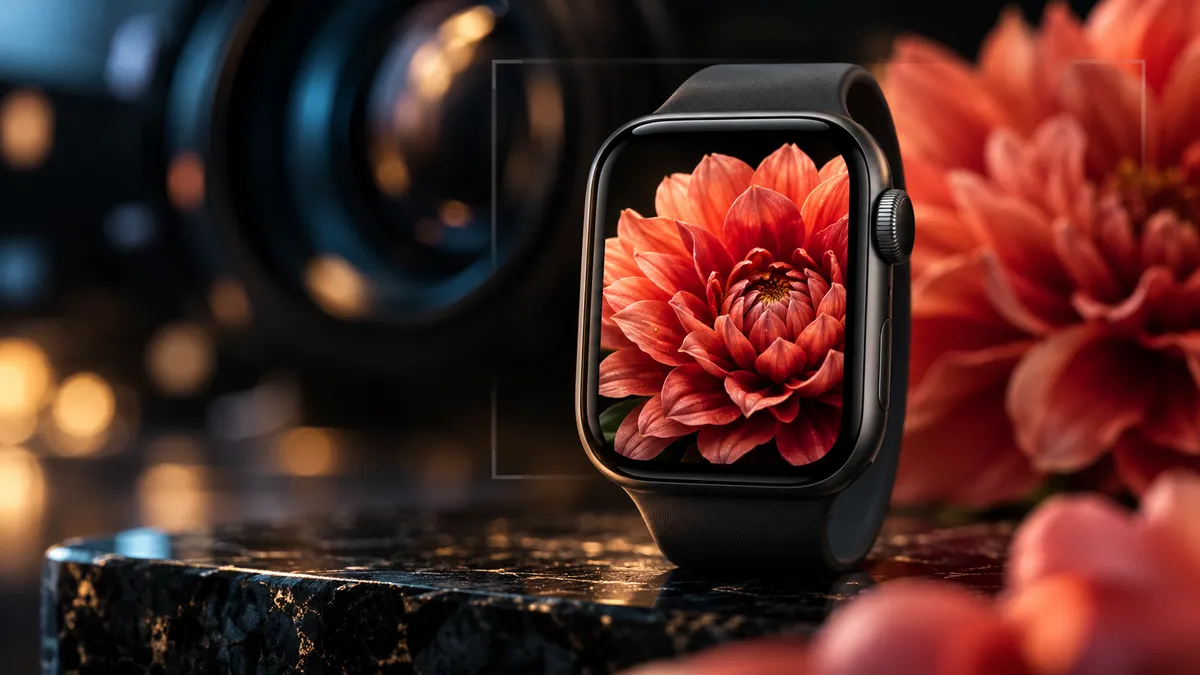
A photo wallpaper turns your Apple Watch into a tiny picture frame. Picking the right photos for Apple Watch wallpaper is not the same as picking a phone wallpaper or a desktop background. The Apple Watch screen — even on the largest 49mm Ultra — is roughly the size of a postage stamp. Most of your photo library will look like a blurry mess at that scale. This guide is about which types of photos translate well, and why the visual rules on a watch are completely different from every other screen you own.
If you want instructions on how to set a photo as your watch face, that process is covered at how to change Apple Watch wallpaper. If you want to build a full custom face from a photo, see Apple Watch face from photo. This article is purely about what to shoot and select.
Why Most Photos Look Bad on Apple Watch
Before getting into what works, it helps to understand why the failure rate is so high. The average person picks a photo they love — a beach vacation shot, a family gathering, a horizontal panorama — sets it as their watch wallpaper, and immediately notices it looks nothing like the original.
There are three main reasons this happens.
The screen is genuinely tiny
An Apple Watch Series 10 (46mm) has a display measuring about 46 × 39mm. An iPhone 16 Pro screen is roughly 147 × 68mm — over five times larger in area. A photo that contains twenty interesting elements on your phone will show zero recognizable elements on your wrist. Your eye simply cannot distinguish fine detail at watch size.
Portrait orientation wins, but most photos are horizontal
The Apple Watch face is taller than it is wide. Most photos people take with a phone in horizontal mode, or with a camera in the default horizontal orientation, get cropped hard when applied to a watch face. You lose the left and right sides completely, often cutting out the exact thing that made the photo interesting.
Bright backgrounds fight the watch UI
Your watch face needs to display time, complications, and other information on top of the background. A bright, high-key photo — white sand beach at noon, snow scene, bright sky — makes every piece of text nearly invisible. Dark or mid-tone backgrounds let the UI breathe. For more on this, see Apple Watch dark wallpaper options.
10 Types of Photos That Actually Work
These categories share a few things: a single dominant subject, high contrast, and enough tonal range to survive heavy cropping.
1. Close-up Macro — Flowers, Textures, Food
A macro shot of a rose petal, a pine cone, or the weave of a wool sweater fills the entire frame with texture and color. There is no background to lose. There is no subject to crop out. The image looks intentional at any size because every pixel is already showing something interesting. Macro photos tend to have smooth transitions between tones, which compresses well on a small OLED display.
2. Silhouette Against Sunset or Sunrise
A tree, a person, a skyline rendered as a pure black shape against a gradient sky gives you exactly the contrast and simplicity the watch screen needs. The dark subject anchors the center of the frame. The color gradient fills the background without competing. Even if you crop it to portrait orientation, a silhouette still reads clearly because the shape itself tells the story.
3. Pet Face — Centered, Dark Background
A close-up of a dog or cat face, shot against a dark background, is one of the most reliably good photos for Apple Watch wallpaper. The eyes create an immediate focal point. Dark fur or shadow around the edges means the time display stays readable. If you shoot your pet near a window with a dark room behind them, the natural falloff does exactly what you need.
4. Baby or Child Face Close-Up
For parents and grandparents, a tight portrait of a baby or young child is the obvious watch wallpaper choice — and it works visually because young faces photograph well in close-up. The skin tones are warm, the eyes are large, and the composition naturally centers the face. Shoot in portrait mode to get a soft background. Crop square or portrait-tall and center the eyes in the upper two-thirds of the frame.
5. Dark Moody Nature — Fog, Rain, Night
A forest in morning fog, rain on a lake surface, or a city street at night all share a low-key palette that makes watch complications pop. These photos also tend to have a natural vertical composition — a path through trees, a rain-slicked street leading away from the viewer — that fits the tall watch face format without awkward cropping. For more options in this style, dark Apple Watch wallpapers covers curated sets.
6. Aerial and Drone Shots — Patterns From Above
Top-down aerial photography works surprisingly well on small screens because the geometry becomes abstract. A grid of rooftops, a patchwork of farm fields, or the spiral of a harbor seen from above reads as a pattern rather than a scene. You do not need to recognize the location for the image to look good. The regularity of the shapes means any crop you take still feels complete.
7. Architecture Detail — Single Window, Doorway, Arch
An entire building at street level will look like noise. A single arched window of a cathedral, a painted doorway in Lisbon, or the geometric shadow of a fire escape against a pale wall — those work. Architectural detail photography naturally produces strong lines, controlled color palettes, and frame-within-frame compositions that adapt well to any aspect ratio.
8. Water Reflection
Still water reflections produce near-perfect symmetry and softened colors that hold up at small sizes. A mountain reflected in a glassy lake, neon signs reflected in a puddle, or a single tree inverted in a still pond all give you a natural horizontal midpoint that can be cropped portrait without losing the essential visual idea. Reflections also tend toward desaturated, dark lower halves — ideal for watch face readability.
9. Simple Food and Drink — Latte Art, Single Fruit
A flat-lay coffee shot with latte art, a single orange against a dark surface, or a perfectly lit strawberry macro photograph translate beautifully to a watch face. The subject is clear, the background is controlled (usually a table or counter), and the color palette is warm and saturated without being chaotic. Food photography also tends to be shot portrait-orientation or square by default, which saves you the cropping problem.
10. Bokeh and Out-of-Focus Lights
Bokeh photos — Christmas lights, street lamps, candles, or any point-source light shot out of focus — produce circles of color against a dark background. At watch scale, bokeh is literally indistinguishable from intentional abstract art. The circles of color are large enough to see, the background stays dark, and the image has a soft, glowing quality that makes watch text easy to read. Sites like Unsplash’s bokeh collection have thousands of free options if you want to start there.
How to Crop Photos for Apple Watch
The Apple Watch uses a portrait-oriented display. Depending on the model, the aspect ratio is roughly 4:5 or 5:6 — taller than it is wide. Here is how to prepare any photo before setting it as a wallpaper.
Center the subject vertically in the upper half. The time display sits near the center of most watch faces, and complications cluster at the bottom. If you place your subject in the very center, the time overlay will bisect it. Put the main subject — a face, a flower, a focal object — in the top 40% of the frame.
Crop to portrait orientation first. Before doing anything else, crop your image to a 4:5 or 5:6 ratio in the iPhone Photos app or any editor. This forces you to decide which part of the image matters most, and prevents the watch from making that decision automatically (it rarely makes a good one).
Check contrast at thumbnail size. Zoom out until your cropped image is roughly 2 cm tall on your phone screen. If you can still read the dominant shape and color, it will work on the watch. If it looks like a smear of color with no clear subject, it will not.
Save as the highest resolution JPEG or HEIC your phone supports. The watch will downsample to its native resolution, but starting with a higher-resolution source means the downsampling algorithm has more information to work with. The exact native resolutions for each Apple Watch model are listed in the Apple Watch wallpaper size chart.
iPhone Camera Tips for Watch-Ready Photos
You do not need special equipment to shoot photos that work well as watch wallpapers. The iPhone camera, used with a few specific techniques, produces watch-ready images consistently.
Use Portrait mode for any subject within 2 meters. Portrait mode creates background blur (bokeh) automatically. The subject gets sharp, the background softens, contrast increases, and the result is exactly the single-subject-on-clean-background look that the watch screen needs. Apple’s dual-camera depth effect has been in every iPhone since the 7 Plus — use it.
Shoot close, not far. Move physically closer to your subject instead of zooming in digitally. Digital zoom reduces resolution and adds compression artifacts that become visible on OLED screens. A close-up shot at 1x is sharper than a zoomed shot at 3x for watch use.
Look for dark backgrounds naturally. When shooting a pet, a flower, or a portrait for watch use, position your subject against a dark wall, shadow, or unlit room. Natural backlighting with a dark interior behind the subject creates the contrast you need without any editing.
Shoot in the golden hour. The hour after sunrise and the hour before sunset produce warm, directional light that creates natural shadows and contrast without blowing out highlights. Bright midday sun flattens shadows and blows out backgrounds — the worst possible conditions for a watch wallpaper photo.
Try the macro lens on iPhone 13 Pro and later. These models have a dedicated ultra-wide macro lens that focuses as close as 2cm. For shooting flowers, food, or textures with this kind of extreme close-up, the macro lens produces images that have large, bold areas of color with no distracting background — ideal for watch faces.
For a broader look at the aesthetic approach, the Apple Watch minimalist wallpaper guide covers how simplicity translates to the watch screen.
Photos to Avoid
This list is as useful as the positive list above. Many people go through trial and error to arrive at these conclusions — here they are in one place.
Group photos and family gatherings. Even if you crop to the face of one person, the other people in the frame become visual clutter that the watch cannot resolve. A group of five people at a table looks like a beige rectangle at watch size.
Photos with text. Signs, t-shirt graphics, captions, or any image that relies on readable text will render as illegible squiggles on the watch screen. The text was probably the point of the photo — at watch size, it becomes noise.
Bright white or light backgrounds. Blue sky, snow, white sand, pale grey studio backdrops — all of these make the watch display hard to read. The white or near-white tones eat into the contrast the UI needs to show time and data clearly.
Horizontal and panorama shots. A sweeping mountain range, a city skyline, a wide beach at sunset — these are designed to be experienced wide. Cropping them to portrait orientation either removes the interesting part (the mountains) or produces a narrow vertical slice that makes no visual sense.
Photos taken at night without proper exposure. A dark, noisy, underexposed night photo looks worse on an OLED watch screen than it does on your phone. Night mode on the iPhone improves things, but photos taken without it in low light will show green and magenta noise at watch scale.
Screenshots and screenshots of maps. A screenshot of a map, a chart, or a UI element has no photographic quality — it is a grid of colored pixels designed for a much larger screen. At watch size, it becomes unreadable and visually ugly.
Resolution Reference Table
| Apple Watch Model | Case Size | Screen Resolution | Recommended Photo Crop |
|---|---|---|---|
| Series 10 | 46mm | 416 × 496 px | Portrait, 5:6 ratio |
| Series 10 | 42mm | 384 × 480 px | Portrait, 4:5 ratio |
| Ultra 2 | 49mm | 410 × 502 px | Portrait, 5:6 ratio |
| Series 9 | 45mm | 396 × 484 px | Portrait, 4:5 ratio |
| Series 9 | 41mm | 352 × 430 px | Portrait, 4:5 ratio |
| SE (2nd gen) | 44mm | 368 × 448 px | Portrait, 4:5 ratio |
| SE (2nd gen) | 40mm | 324 × 394 px | Portrait, 4:5 ratio |
Full pixel dimensions for older models and the complete chart are at the Apple Watch wallpaper size chart.
Browse the WatchWalls collection — every image is pre-cropped to your exact Apple Watch model resolution, with dark-background options for maximum readability.
Browse the CollectionFAQ
What resolution should photos be for Apple Watch wallpaper?
The minimum useful resolution for photos for Apple Watch wallpaper is 416 × 496 pixels for a 46mm Series 10, or 410 × 502 for an Ultra 2. That said, you should always start with the highest-resolution photo you have — the watch will downsample it, and higher source resolution produces a sharper result. Never stretch or upscale a low-resolution image to fit; it will look blurry on the OLED screen.
Can I use any photo from my iPhone camera roll as a watch wallpaper?
Technically yes — watchOS and the iPhone Watch app let you set almost any photo from your library as a watch face background. The question is whether it will look good. Most random camera roll photos do not — they are too wide, too busy, or too bright. Pick photos with a single clear subject, dark or blurred backgrounds, and portrait-oriented or square framing for the best results.
Does portrait mode on iPhone help with watch wallpapers?
Yes, significantly. Portrait mode blurs the background and sharpens the subject, which is exactly the visual separation the watch screen needs to show a clear image. The depth effect also naturally darkens background areas, improving readability of complications. For photos of people or pets intended for watch use, Portrait mode is the right choice almost every time.
Where can I find free photos that work well as Apple Watch wallpapers?
Unsplash is the most reliable source for high-quality free photos in the styles that work — macro, bokeh, dark moody nature, silhouettes. Search especially for “macro,” “bokeh lights,” “dark background,” or “minimalist” to filter toward watch-compatible results. The WatchWalls collection offers photos that are already cropped and sized for each Apple Watch model, which saves the manual cropping step.
Why does my photo look zoomed in and off-center on my Apple Watch?
When you set a photo as a watch wallpaper through the iPhone Watch app, the system tries to auto-crop it to fit the watch face aspect ratio. If your photo is horizontal-oriented or has a subject that is not centered, the auto-crop often misses the subject entirely. The fix is to manually crop your photo to a portrait aspect ratio (4:5 or 5:6) before setting it, placing the subject in the upper half of the cropped frame. The Apple Watch face from photo guide covers the manual positioning process in detail.