How to Organize Apple Watch Faces: The Right Face for Every Situation
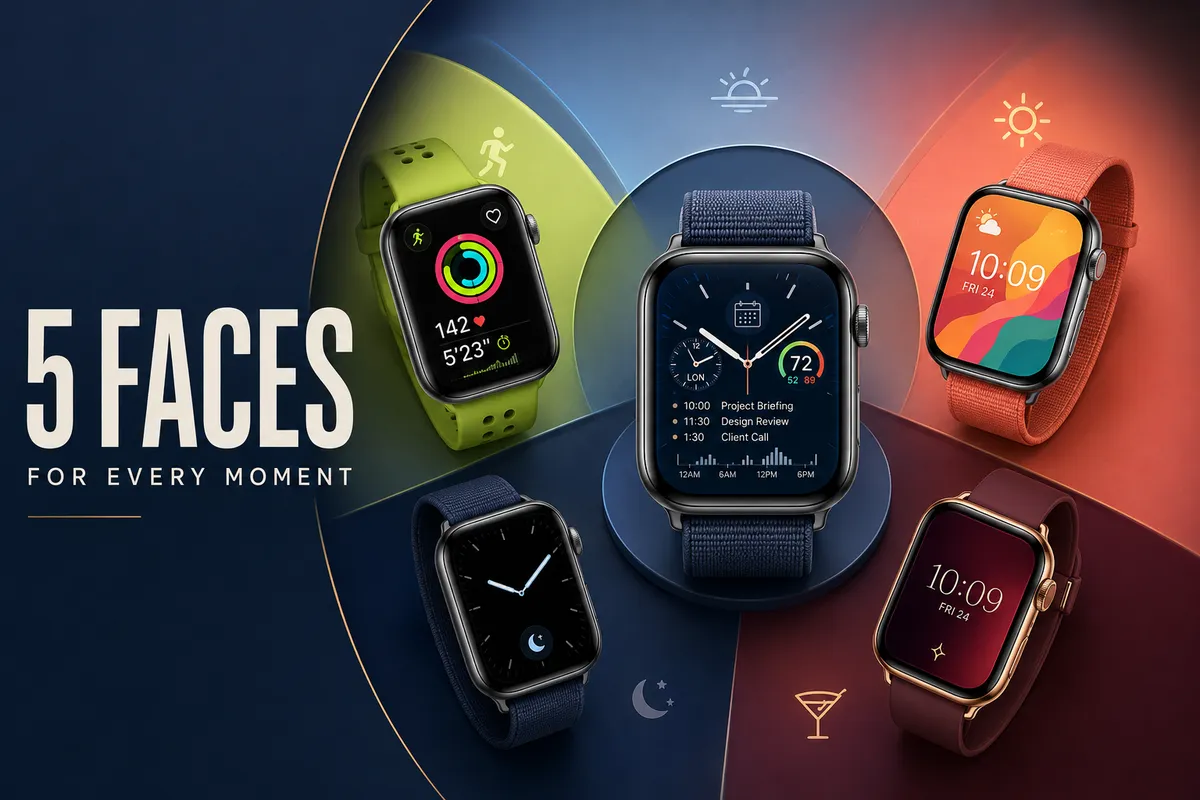
Most Apple Watch owners use one face for everything. That is like wearing the same outfit to the gym, office, and dinner. Your watch can have unlimited saved faces — each with different complications, wallpapers, and layouts. Here is how to organize them for maximum productivity and style.
Why You Need Multiple Apple Watch Faces
A single face forces compromises. Your work face needs calendar and email complications, but those are useless during a run. Your running face needs pace and heart rate, but those clutter your casual look. Your sleep face should be dark and simple, but that is boring for dinner out.
The solution: organize apple watch faces for different situations. Keep 4-5 faces saved and swipe between them in under one second. Each face has its own complications, wallpaper, and purpose. No compromises.
Apple Watch stores unlimited faces. You can have 20+ saved if you want, but most people find 4-5 covers every situation without becoming overwhelming. Face vs wallpaper explained.
The 5-Face System
Here is the system that works for most people. Set up these five faces in order and swipe between them as your day changes:
| Face | Best Watch Face | Key Complications | Wallpaper Style |
|---|---|---|---|
| 1. Work | Infograph | Calendar, Email, Phone, Battery | Dark, professional |
| 2. Workout | Activity Digital | Heart Rate, Pace, Distance | Black + neon accent |
| 3. Casual | Photos | Weather, Date | Personal photo or fun design |
| 4. Sleep | Color (simple) | None or Alarm only | Pure black |
| 5. Going Out | Photos or Flow | Date only | Luxury gradient or expressive art |
Work Face Setup
Best face: Infograph — 8 complications for maximum data density.
Complications:
Wallpaper: Dark navy or charcoal gradient. Professional, clean, and easy to read in any lighting. Avoid bright or playful wallpapers — they undermine the professional look. Full work face guide.
Workout Face Setup
Best face: Activity Digital — large time with 3 focused complications.
Wallpaper: Pure black with a single neon accent (green or orange). Maximum contrast for sweaty mid-workout glances. Dark backgrounds save battery during long workouts. Running face guide | Fitness face guide.
Casual / Personal Face
Best face: Photos — this is where your personality shows.
Wallpaper: Your pet, family photo, travel memory, or a fun AI-generated design. This face is for YOU, not for data. Rotate wallpapers weekly to keep it fresh. WatchWalls AI can generate unlimited casual wallpapers at your watch’s native resolution. Cute wallpapers | Aesthetic wallpapers.
Sleep Face Setup
Best face: Color face (solid color) or Modular Compact with minimal data.
Wallpaper: Pure black (#000000). On OLED, this means the screen is effectively off — no light pollution while you sleep. If your watch has AOD, a black face means zero ambient light. Sleep face guide.
Going Out Face
Best face: Photos (with a striking wallpaper) or Flow (Liquid Glass).
Wallpaper: Rich jewel tones (emerald, sapphire, ruby gradient), gold-and-marble luxury design, or the Flow face with a deep color orb. This face is about looking good, not about data. Luxury wallpapers | Liquid Glass guide.
A different wallpaper for every situation
Work, workout, casual, sleep, evening — each face deserves its own wallpaper. WatchWalls AI generates unique designs at your watch’s native resolution. Create all 5 in minutes.
Automatic Face Switching with Focus Modes
Instead of swiping manually, let your Apple Watch switch faces automatically based on Focus modes:
Example schedule:
This is the most underused feature of Apple Watch. Once set up, you never think about which face to use — it happens automatically. How to switch faces manually.
How to Add, Remove, and Reorder Apple Watch Faces
Add a new face
On watch: press and hold current face → swipe right to end → tap +. Or in Watch app: Face Gallery → select face → Add.
Remove a face
On watch: press and hold → swipe up on the face you want to remove → tap Remove. The face is deleted but can be re-added anytime.
Reorder faces
On watch: press and hold → drag faces left or right to reorder. Put your most-used faces in the center for fastest access. Put sleep face at one end and workout at the other.
Best arrangement
Left to right: Sleep → Work → Casual (center, default) → Workout → Evening. Your casual face is the “home” position. Swipe left for productivity, swipe right for activity.
Matching Wallpapers to Each Face
Each face in your 5-face system should have a wallpaper that matches its purpose. Here is the complete matching guide:
| Face | Wallpaper | Why |
|---|---|---|
| Work | Dark gradient (navy/charcoal) | Professional, high contrast for complications |
| Workout | Black + neon accent | Battery saving, readable mid-exercise |
| Casual | Personal photo or fun AI design | Self-expression, joy |
| Sleep | Pure black | Zero light pollution, maximum battery |
| Evening | Luxury gradient or metallic | Jewelry-like, matches outfit |
Complete background choosing guide | Best free wallpaper sources.
How to Organize Apple Watch Faces FAQ
How many faces can I save on Apple Watch?
Unlimited. Apple Watch has no limit on saved faces. Most people use 4-5, but you can have 20+ if you want a face for every mood, occasion, or outfit.
Can Apple Watch switch faces automatically?
Yes, using Focus modes. Assign a face to each Focus (Work, Sleep, Fitness, Personal). When the Focus activates — manually, by schedule, or by location — the watch face switches automatically. Set this up in Watch app > General > Focus.
Does having many saved faces drain battery?
No. Saved faces use minimal storage and zero battery when inactive. Only the currently displayed face uses processing power. Having 20 saved faces costs nothing compared to having 1.
Can each face have a different wallpaper?
Yes. Each Photos face can have its own unique wallpaper. Create multiple Photos faces with different images — one for work, one for casual, one for evening. WatchWalls AI generates wallpapers at your watch’s native resolution for each purpose. Photo face guide.
What is the best order for my faces?
Put your most-used face in the center (default position). Arrange others by frequency of use on either side. Suggested: Sleep → Work → Casual (center) → Workout → Evening. Swipe left for productivity, right for activity.
Can I share my face setup with someone else?
Partially. You can share a watch face configuration (complications and style) via the Watch app. However, custom wallpapers do not transfer — the other person needs the same image in their camera roll. Share the face setup, then tell them the wallpaper description to generate a matching one in WatchWalls AI.
5 faces. 5 wallpapers. 5 seconds to switch.
Create a complete wallpaper set for your 5-face system. WatchWalls AI generates each at your watch’s native resolution. Work, workout, casual, sleep, evening — all unique.
Related Guides
Automation Tips for Face Organization
The most powerful face organization tool is Focus mode automation. Create a Focus for each context — Work, Exercise, Sleep, Weekend — and assign a specific watch face to each. When Focus activates (by schedule, location, or app), your watch face switches automatically. This eliminates manual swiping entirely. You can also use Shortcuts automation to change faces at specific times: “At 9 AM on weekdays, set Work face” and “At 6 PM, set Personal face.” Combined with a well-organized face carousel, this creates a watch that adapts to your day without any input from you.
Common Face Organization Mistakes
The biggest mistake is keeping every face you have ever created. Most people accumulate 15-20 faces over time but only use 3-4 regularly. The rest create clutter when swiping. Delete any face you have not used in the past month — you can always recreate it later. Another common mistake is not naming faces logically. While Apple Watch does not let you rename faces directly, the combination of face type and complications should make each one instantly identifiable. If two faces look similar, either differentiate their complications or delete one. A streamlined carousel of 4-6 intentional faces is more useful than a library of 20 generic ones.
Frequently Asked Questions
What is the best Apple Watch face for how to organize s?
The best face depends on which complications you need most. Check the recommendations in this guide for specific setups optimized for how to organize s.
How do I change my Apple Watch face?
Long-press on your current watch face, swipe to browse faces, or swipe to the + icon to add a new one. You can also use the Watch app on your iPhone.
Can I add complications to my Apple Watch face?
Yes. Long-press on the watch face, tap Edit, then tap a complication slot to choose what information appears there — weather, activity, calendar, and more.
How many Apple Watch faces can I have?
You can create and store as many watch faces as you want. Swipe left or right on your watch to switch between them, or set Focus modes to change faces automatically.
Does changing my watch face affect battery life?
Minimally. Faces with more complications update more often and use slightly more battery. Bright, colorful faces use more OLED power than dark ones. The difference is typically 5-10%.
