 WatchWalls AI
Matching Apple Watch and iPhone Wallpaper: Best Coordinated Sets
Why Matching Wallpapers Look So Good
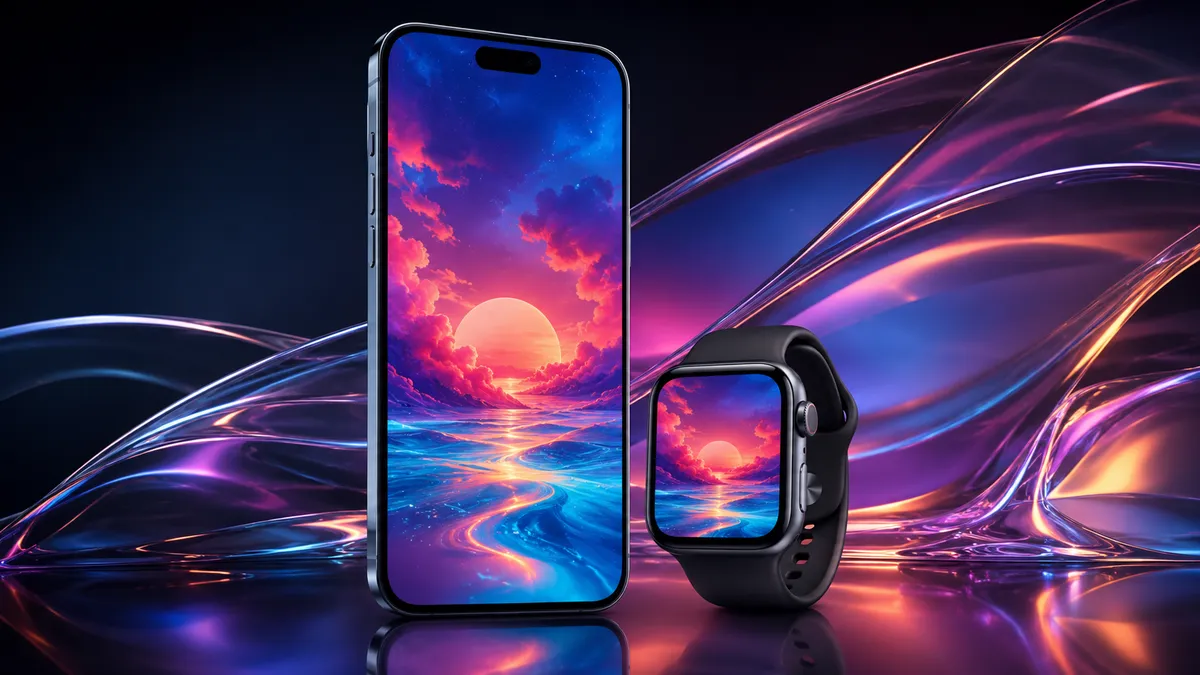
There’s something about pulling out your iPhone and glancing at your Apple Watch with a matching wallpaper when both screens share the same visual language. It just clicks. And it’s not by accident — visual cohesion is one of the oldest tricks in design.
Think about it. Brands spend millions making sure every touchpoint feels connected — same colors, same mood, same story. When your matching Apple Watch iPhone wallpaper set follows that same principle, your devices stop looking like separate gadgets and start feeling like a unified personal aesthetic.
This kind of coordination signals intention. It tells anyone who notices (and people do notice) that you care about the details. It’s the digital equivalent of matching your watch band to your outfit — a small move that carries real visual weight. If you’re already into matching your Apple Watch band to your watch face, extending that coordination to your phone wallpaper is the natural next step.
Beyond the style factor, there’s a practical side too. When both screens share a similar palette or theme, switching between devices feels smoother. Your eyes aren’t jarred by completely different color temperatures or moods. It’s a subtle thing, but once you try it, going back to mismatched wallpapers feels weirdly chaotic.
3 Approaches to Matching Your Wallpapers
Not every matching wallpaper apple watch setup has to be identical across both screens. There are actually a few different ways to coordinate, and each gives a slightly different vibe.
1. Same Image, Different Crops
This is the most straightforward approach. Take one photo — say, a sunset shot or a close-up of marble texture — and crop it differently for your iPhone and Apple Watch. The phone gets the wide view, and the watch gets a tight detail crop from the same image.
The result? Both screens clearly belong together, but each one shows a perspective that works for its size. A horizontal photo might show the full horizon on your phone while the watch zooms into the sky gradient. Same image, two perfect frames.
2. Same Color Palette, Different Images
If identical crops feel too matchy-matchy for your taste, try this: pick two different images that share the same color palette. Maybe a dusty pink desert photo for your iPhone and a rose-tinted cloud shot for your Apple Watch. They don’t look the same, but they feel the same.
This approach gives you more flexibility. You’re not locked into one photo — you just need to keep the tones consistent. Warm with warm, cool with cool. Earth tones with earth tones. The coordinated apple watch phone wallpaper vibe is still there, just a bit more relaxed.
3. Complementary Designs
This one is for the creatively adventurous. Instead of matching, you play with contrast that still works together. An abstract pattern on your watch paired with a detailed photo on your phone. A dark moody texture on the watch, a lighter version of the same mood on the iPhone.
Think of it like wearing a solid-colored shirt with patterned pants — they don’t match in the traditional sense, but they complement each other. The key is shared mood or theme, not shared imagery. Check out some aesthetic Apple Watch wallpaper options for inspiration on the watch side of these pairings.
10 Best Matching Wallpaper Set Ideas
Need some starting points? Here are ten apple watch iphone wallpaper set ideas that look fantastic when coordinated across both devices.
1. Sunset/Sunrise Gradient Pair
Gradients are practically made for this. A warm sunset photo on your iPhone — all oranges and pinks bleeding into purple — paired with a cropped slice of that same gradient on your Apple Watch. The watch becomes a little window into the same sky. Golden hour colors work on any screen size and never feel overdone.
2. Ocean and Beach Theme
Use a wide beach panorama for the phone and a close-up of turquoise water texture for the watch. The sandy warm tones and ocean blues tie everything together. This pairing works year-round but hits different during summer months. For more ideas in this direction, browse through Apple Watch nature wallpapers.
3. Dark Moody Forest
Deep greens, misty shadows, the kind of forest photos that make you want to go hiking. A wide forest path shot on the iPhone with a close-up of mossy bark or a single fern frond on the watch. The dark palette keeps both screens looking sophisticated without being boring.
4. Minimalist Geometric
Clean lines, bold shapes, limited color palette. A geometric pattern with two or three colors on the phone, and a simpler version — maybe just one shape from that pattern — on the watch. This style works particularly well because the Apple Watch’s small screen actually suits minimalism perfectly.
5. Marble and Stone Texture
White marble with grey veining, black granite with gold flecks, or warm sandstone — texture-based wallpapers are some of the easiest to match. Crop the same marble slab differently for each device. The organic patterns mean no two crops look identical, but they obviously belong together.
6. Seasonal Matching (Fall Leaves Edition)
Autumn is the MVP of seasonal matching apple watch iPhone wallpaper sets. A canopy of red and gold leaves for the phone, a single maple leaf close-up for the watch. You can rotate these every season — cherry blossoms in spring, lush green in summer, snow-covered branches in winter.
7. Space and Galaxy Coordinated
Nebula photos, star fields, planet close-ups — space imagery is dramatic on both screen sizes. Use a wide galaxy shot for the iPhone and a tight crop of a colorful nebula cloud for the watch. The deep blacks of space also help with battery life on OLED screens, which is a nice bonus.
8. Pastel Aesthetic Duo
Soft lavender, baby blue, blush pink, mint green — pastel wallpapers look gorgeous on Apple devices. A pastel gradient or softly lit photo on the phone paired with a solid or subtly textured pastel on the watch. This combo is popular in the aesthetic community for good reason: it photographs beautifully in flat lays too.
9. Neon and Cyberpunk Set
For the opposite end of the spectrum: dark backgrounds with neon accents. Think rain-soaked city streets with neon signs for the iPhone and a simple neon glow line or shape on the watch. The contrast between the dark background and bright neon makes both screens pop, and it pairs well with darker watch bands.
10. Floral and Botanical Pair
A lush botanical arrangement on the phone — roses, peonies, eucalyptus, whatever you like — with a single bloom close-up on the watch. Dark background floral works best for this because the flowers really stand out against the black, and the Apple Watch screen blends into the bezel. More botanical inspiration is waiting in our Apple Watch wallpaper ideas collection.
How to Set Up Matching Wallpapers
Getting a coordinated watch phone wallpaper running on both devices is simpler than you’d think. Here’s the process for each.
Setting Your iPhone Wallpaper
- Open Settings on your iPhone
- Tap Wallpaper
- Tap Add New Wallpaper
- Choose Photos and select your image
- Pinch to zoom and drag to position the crop exactly where you want it
- Tap Add and choose whether to set it for your Lock Screen, Home Screen, or both
Setting Your Apple Watch Wallpaper
- Open the Watch app on your iPhone
- Tap Face Gallery
- Scroll to Photos watch face
- Tap to customize and select your matching image from your photo library
- Adjust the crop by pinching and dragging
- Tap Add to set it as your current watch face
Alternatively, you can send the image to your Apple Watch directly and set it from the wrist — long-press the watch face, swipe to the Photos face, and pick your image. For a more detailed walkthrough, our guide on how to change Apple Watch wallpaper covers every method.
Pro Tip: Crop Before You Set
Don’t rely on the built-in cropping tools to get the perfect frame. Open your image in your phone’s photo editor (or any editing app) and pre-crop two versions — one at iPhone resolution and one at Apple Watch resolution — before setting them. You’ll have much more control over exactly what part of the image shows on each screen.
Resolution Guide: iPhone vs Apple Watch Sizes
To get crisp, clean wallpapers on both devices, you need to know the target resolution. Here’s a quick reference for current models.
| Device | Screen Size | Resolution (pixels) | Aspect Ratio |
|---|---|---|---|
| iPhone 16 Pro Max | 6.9″ | 1320 × 2868 | ~19.5:9 |
| iPhone 16 Pro | 6.3″ | 1206 × 2622 | ~19.5:9 |
| iPhone 16 | 6.1″ | 1179 × 2556 | ~19.5:9 |
| Apple Watch Ultra 2 | 49mm | 410 × 502 | ~4:5 |
| Apple Watch Series 10 (46mm) | 46mm | 416 × 496 | ~5:6 |
| Apple Watch Series 10 (42mm) | 42mm | 374 × 446 | ~5:6 |
| Apple Watch SE (44mm) | 44mm | 368 × 448 | ~5:6 |
The big takeaway: your iPhone wallpaper is tall and narrow (portrait), while your Apple Watch wallpaper is nearly square. That difference is why the same image needs different crops — a photo that looks great at 19.5:9 won’t frame the same way at 5:6. Always start with the highest-resolution source image you can find so you have room to crop without losing sharpness.
Where to Find Matching Sets
You don’t have to DIY every matching set from scratch. Several sources offer pre-made coordinated wallpaper packs.
Vellum App
The Vellum wallpaper app is a favorite in the Apple community. It offers curated, high-resolution wallpapers designed for Apple devices. While it doesn’t always label sets as “matching,” many of its wallpapers share color families that pair beautifully between iPhone and Apple Watch.
Etsy Wallpaper Packs
Search “matching Apple Watch iPhone wallpaper” on Etsy and you’ll find dozens of sellers offering coordinated digital download packs. These typically include pre-cropped versions for multiple iPhone models and Apple Watch sizes, so you don’t have to do any resizing yourself. Prices usually range from $2–$8 for a set.
Pinterest Boards
Searching Pinterest for “matching Apple Watch iPhone wallpaper set” turns up endless inspiration. Many pins link to free downloads or tutorials. Create a board to save your favorites and come back to them when you’re ready to switch things up.
Create Your Own
If you can’t find exactly what you want, making your own is easier than you’d expect. More on that in the next section.
DIY: Creating Your Own Matching Set
Making a custom matching apple watch iphone wallpaper pair is a satisfying little project. You don’t need design skills — just a good source image and a basic editing tool.
Method 1: Crop From One Photo
This is the fastest route. Take or find a high-resolution photo you love. Open it in your phone’s built-in photo editor. Create two copies: crop one to iPhone dimensions (roughly 9:19.5) and one to Apple Watch dimensions (roughly 5:6). Save both and set them on your devices.
The trick is choosing which part of the image goes where. Usually, the full composition works on the phone, and a detail — a texture, a color gradient, a single element — works on the watch.
Method 2: Use Canva
Canva makes this ridiculously easy. Create a custom-sized canvas for each device (use the resolution table above). Drop in the same background image, gradient, or design elements. Adjust each one independently. Download both as PNG files and transfer them to your devices.
Canva’s color picker tool is particularly helpful here. You can sample a color from your iPhone wallpaper and use that exact hex code in your Apple Watch design, guaranteeing the tones match perfectly.
Method 3: Color Pick and Design
For those who want full creative control: start with a color palette. Use a tool like Coolors or Adobe Color to generate a palette you love. Then create two separate designs using those same colors. The phone version can be more detailed (gradients, patterns, photography), while the watch version stays simpler — maybe a solid color with a subtle texture or a single graphic element.
Tips for Perfect Color Matching
Getting colors to look the same across two different screens is trickier than it sounds. Here are some strategies that actually work.
Use the Same Photo Source
The simplest way to guarantee matching colors is to pull both wallpapers from the same original image. Even if you crop completely different sections, the lighting, white balance, and color grading will be consistent because they come from one source file.
Match the Dominant Color
Every wallpaper has a dominant color — the one that takes up the most screen area. Make sure this color is identical (or very close) on both devices. If your iPhone wallpaper is primarily deep teal, your Apple Watch wallpaper should center on that same teal, even if the image itself is different.
Watch Out for Screen Differences
iPhone and Apple Watch screens render colors slightly differently. iPhones tend to have wider color gamut and higher brightness. A color that looks vibrant on your phone might appear slightly muted on the watch, or vice versa. Test your wallpapers on both devices before committing — sometimes you need to bump up the saturation on the watch version slightly to make them look truly matched in real life.
Stick to Similar Contrast Levels
If your iPhone wallpaper is high-contrast (deep darks and bright highlights), pair it with a similarly contrasty image on the watch. A high-contrast phone wallpaper next to a low-contrast watch wallpaper will feel disconnected even if the colors technically match. Mood alignment matters as much as color alignment.
Consider Your Watch Face Elements
Remember that your Apple Watch wallpaper sits behind complications, the time display, and other interface elements. Choose watch wallpaper colors that don’t clash with your complication text color. Dark wallpapers with light complications or light wallpapers with dark complications tend to work best. This is where that coordinated watch phone wallpaper planning really pays off — you want everything readable, not just pretty.
Frequently Asked Questions
Can I automatically sync wallpapers between my Apple Watch and iPhone?
No, Apple doesn’t currently offer a feature to automatically sync or match wallpapers between the two devices. You need to set each wallpaper separately — one through iPhone Settings and one through the Watch app or directly on your Apple Watch. It’s a manual process, but it only takes a couple of minutes once you have your images ready.
What resolution should my matching Apple Watch iPhone wallpaper be?
For iPhones, aim for at least 1179 × 2556 pixels (iPhone 16 base model). For Apple Watch, you’ll want around 396 × 484 pixels for newer models. Always start with the highest-resolution source image possible — at least 3000 pixels on the long side — so you can crop for both devices without any quality loss.
Do matching wallpapers affect battery life on Apple Watch?
The wallpaper itself has minimal impact on battery life. However, using the Photos watch face (which is what you’ll use for custom wallpapers) does use slightly more power than some built-in faces. Dark wallpapers with lots of true black can actually help conserve battery on OLED screens, since black pixels are turned off entirely. So a dark matching set is the best choice if battery is a concern.
Where can I download free matching wallpaper sets for Apple Watch and iPhone?
Pinterest is a great free resource — search for “matching Apple Watch iPhone wallpaper” and you’ll find plenty of downloadable sets. The Vellum app offers both free and premium wallpapers optimized for Apple devices. You can also create your own for free using Canva’s free tier or by cropping high-resolution photos from Unsplash.
Can I use Live Photos or dynamic wallpapers as a matching set?
On the iPhone, yes — you can use Live Photos as your lock screen wallpaper. On the Apple Watch, the Photos face supports static images only, so your watch version will be a still frame. You can use the key frame from your Live Photo for the watch to maintain visual consistency, but the animation effect will only work on the phone side.
